1
Select
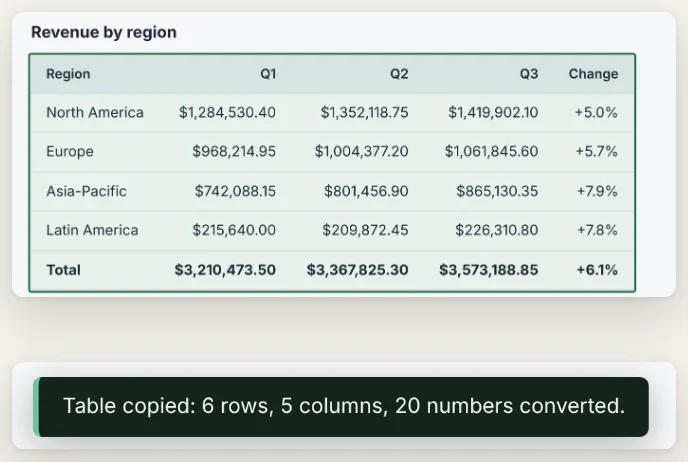
Press Alt+Shift+C, then click the table. Or open Decimally from the toolbar to preview every table on the page.
Guide
Decimally works on HTML tables in Chrome on a computer. Three steps, then paste.
This guide describes the extension, which is not yet released on the Chrome Web Store.
Press Alt+Shift+C, then click the table. Or open Decimally from the toolbar to preview every table on the page.
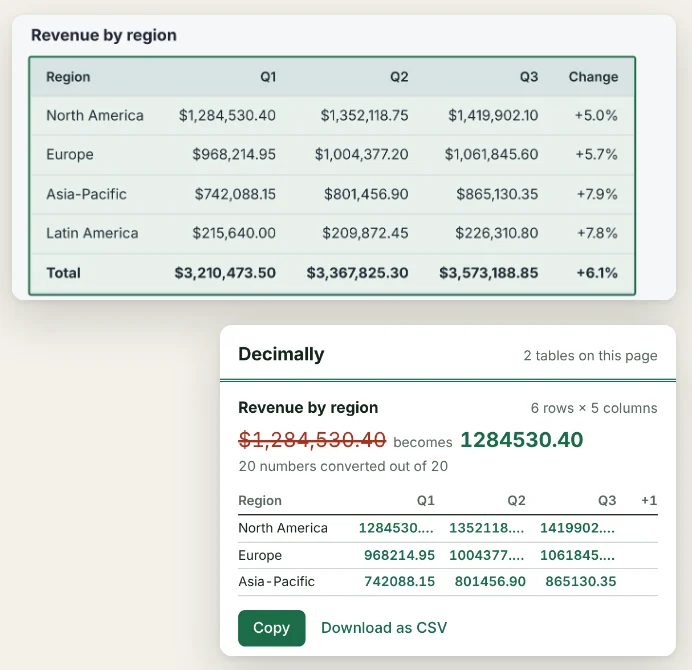
The preview shows the converted numbers before anything leaves the page.
Paste into your spreadsheet. The numbers add up straight away.
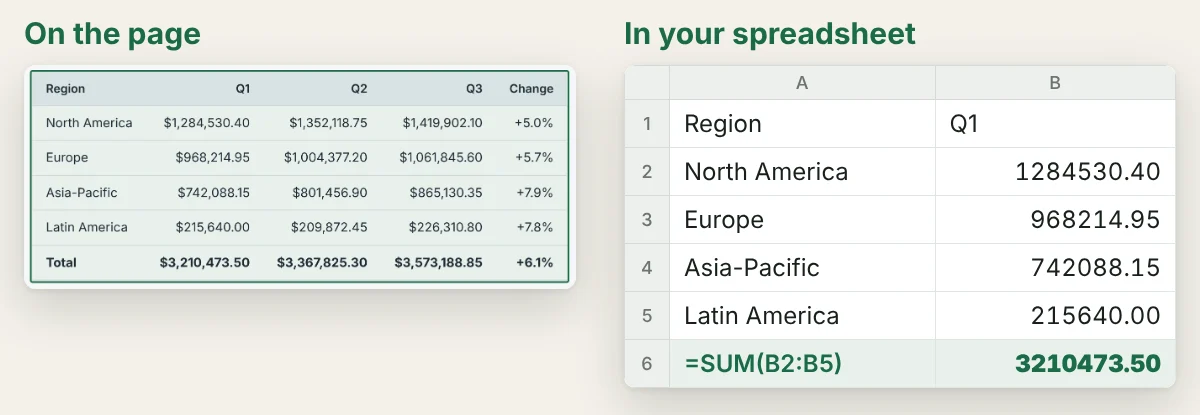
Decimally copies the table to the clipboard as both tab-separated text and HTML. You can paste it into Excel, Google Sheets, or LibreOffice Calc.
Decimally exports a UTF-8 file. If you choose a decimal comma, it uses semicolons between fields. If Excel opens the file in a single column, import it as a text/CSV file and select the delimiter used in the file.
The comma could be a thousands separator or a decimal separator. Decimally checks the other values in the column first, then the rest of the table, then the page language. It chooses the most likely interpretation and flags the values that required a judgment call.